Move your dev setup to a new Windows PC
Moving to a new PC has three parts: your code, your secrets, and how you run each project. Git carries your code. You copy your secrets yourself. RepoYard's setup file brings back the rest, such as dev server commands, stacks and notes. Do them in that order.
Get your code onto the new PC
Run the first part in your code folder on the old PC. It writes each repo's folder name and Git address to repos.txt and skips folders without a remote. Copy the file across, then run the second part in the folder where the repos should go on the new PC.
Push any branch you want to keep first. A clone brings what is on the remote, not uncommitted changes or branches that only exist on the old PC.
# On the old PC, in your code folder
Get-ChildItem -Directory | ForEach-Object {
  $url = git -C $_.FullName remote get-url origin 2>$null
  if ($url) { "$($_.Name)`t$url" }
} | Set-Content repos.txt

# On the new PC, in the folder for your repos
Get-Content repos.txt | ForEach-Object {
  $name, $url = $_ -split "`t", 2
  git clone $url $name
}
Copy what Git doesn't carry
.env files are usually ignored by Git, so they stay on the old PC, and RepoYard's setup file doesn't include them either. Copy each one into the same repo on the new PC yourself, and keep them private. Install the Node versions your repos ask for too. The guide Use the right Node version for each project on Windows shows how.
Bring back how you run each project
RepoYard's setup file is not a backup. It holds no code and no files. It records how you set up each repo in RepoYard: dev server commands, stacks, notes and links, pinned repos, scan folders and preferences. History and time tracking, logs, SSH servers and your license are never included.
On the old PC, open Settings, then Library, and choose Export setup… to save the file. Variables you typed into a dev server's settings come along, except values that look secret, such as API_KEY or a database address with a password in it. Those stay out unless you include them, and anyone with the file can then read them. Your .env files never go in: the file only notes which .env file each dev server loads.
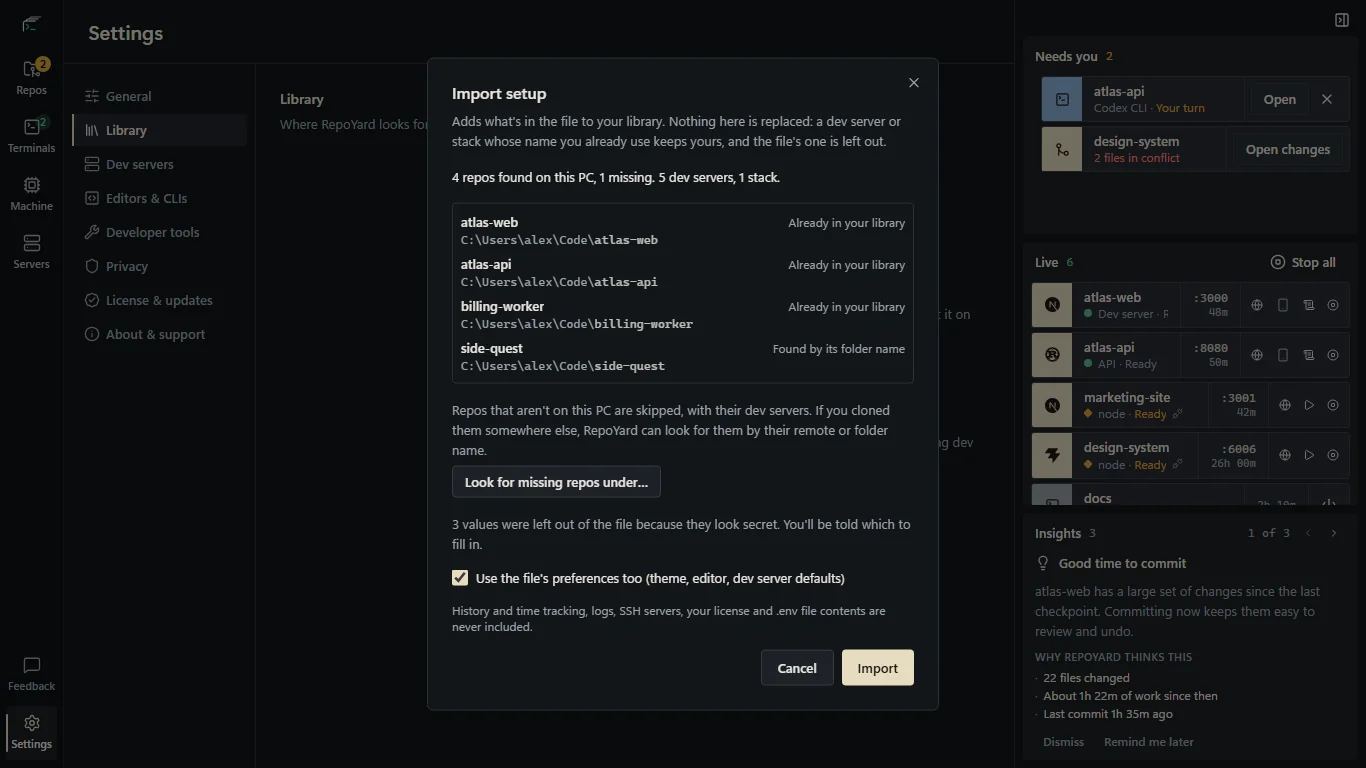
On the new PC, choose Import setup… and pick the file. RepoYard looks for each repo you cloned: at the same place, by its remote or by its folder name, and Look for missing repos under… searches a folder you choose. A repo it can't find is skipped. Nothing changes until you choose Import, and import only updates RepoYard's own list. It never writes files into your repos.
A repo already in your library keeps its own settings, a dev server or stack whose name you already use is left alone, and importing the same file twice adds nothing more. Afterwards RepoYard lists the secret values to fill in, and the file's preferences come in only if you tick that option.
Further reading
Try the workflow in RepoYard.
Windows 10 and 11, x64. Every feature for 7 days, then US$39.99 once. No RepoYard account needed.