Find what is using port 3000 on Windows
Your dev server will not start because port 3000 is already in use. First find the process that owns the port. It may be an earlier run of your app, another project, or a service you should leave running.
Find the listening process
Open PowerShell and list the listening connections on that port. OwningProcess is the process ID, or PID. More than one row can refer to the same process.
If the command finds no listener, the old process may already have exited. Read the server error again and check whether it names a different port.
Get-NetTCPConnection -LocalPort 3000 -State Listen |
  Select-Object LocalAddress, LocalPort, OwningProcess
Check what the process belongs to
Use the PID from the result to inspect the process. Replace 1234 below with that number. For a Node process, the command line helps distinguish one project from another.
Close the app or press Ctrl+C in its original terminal when possible. Avoid stopping an unfamiliar process just to free a port; changing your dev server's port may be the better choice.
Get-CimInstance Win32_Process -Filter "ProcessId = 1234" |
  Select-Object ProcessId, Name, CommandLine
Find it in RepoYard
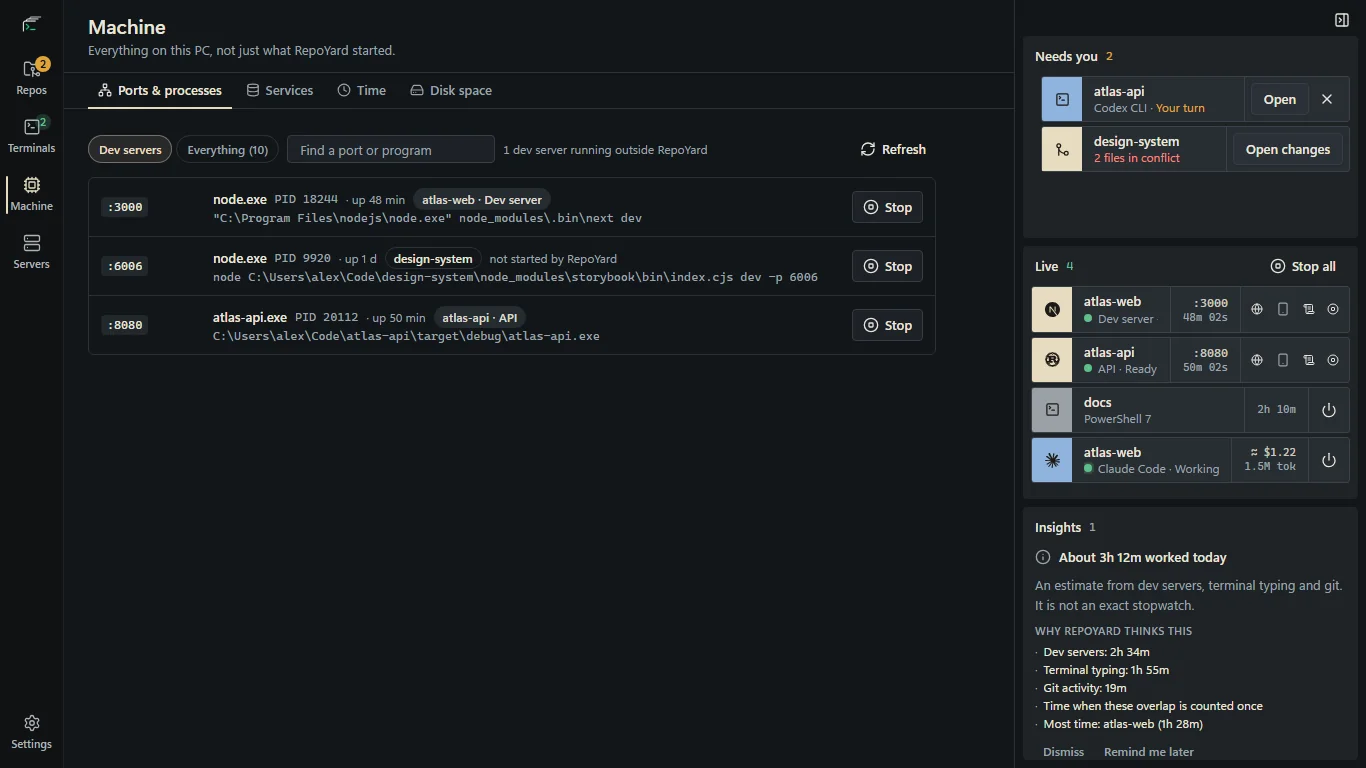
Open Machine, then Ports & processes. RepoYard lists listening processes with their ports, PIDs and command lines, including servers it did not start. Inspect the command and use Stop only when you recognize the process.
For services started from RepoYard, the board also shows their running state. Stack startup can assign available ports and pass them to dependent services, reducing manual port coordination.
Further reading
Try the workflow in RepoYard.
Windows 10 and 11, x64. Every feature for 7 days, then US$39.99 once. No RepoYard account needed.