Delete old Git branches safely on Windows
Every finished feature leaves a local branch behind, and after a few months the list runs off the screen. Deleting the ones already merged is safe. The others can hold work that exists nowhere else, so check them before you delete.
Know which branches are safe to delete
A branch is safe to delete when every commit on it is already in your main branch, and git branch --merged main lists those. Deleting a local branch doesn't touch the copy on GitHub or any other remote.
Squash merges are the exception. GitHub's Squash and merge puts the work into main as one new commit, so Git can't tell the branch was merged and --merged leaves it out. Once its pull request is merged and the remote branch deleted, the local branch shows as gone instead.
Delete merged branches in PowerShell
The usual answer online pipes git branch into grep and xargs, which PowerShell doesn't have. Run this in your repo instead. It switches to main, drops remote branches that were deleted from your list, and deletes every local branch already merged into main. git branch -d refuses a branch that isn't merged, so this can't lose work. Use master if that is your main branch.
Keep the options in this order. In our test with Windows PowerShell 5.1 and Git 2.52, putting --format after --merged made Git read it as a branch name and stop with an error.
git switch main
git fetch --prune
git branch --format='%(refname:short)' --merged main |
  Where-Object { $_ -notin 'main', 'master' } |
  ForEach-Object { git branch -d $_ }
Check branches whose remote was deleted
The first command lists local branches whose remote branch is gone, usually because the pull request was merged and the branch deleted on GitHub. For each one, git log shows the commits that are not in main. If that work reached main through a squash merge, or you don't need it, delete the branch with git branch -D, which deletes it even when Git thinks it isn't merged.
git for-each-ref --format='%(refname:short) %(upstream:track)' refs/heads |
  Where-Object { $_ -match ' \[gone\]$' } |
  ForEach-Object { ($_ -split ' ')[0] }

git log --oneline main..feature/old-search
git branch -D feature/old-search
Clean up old branches in RepoYard
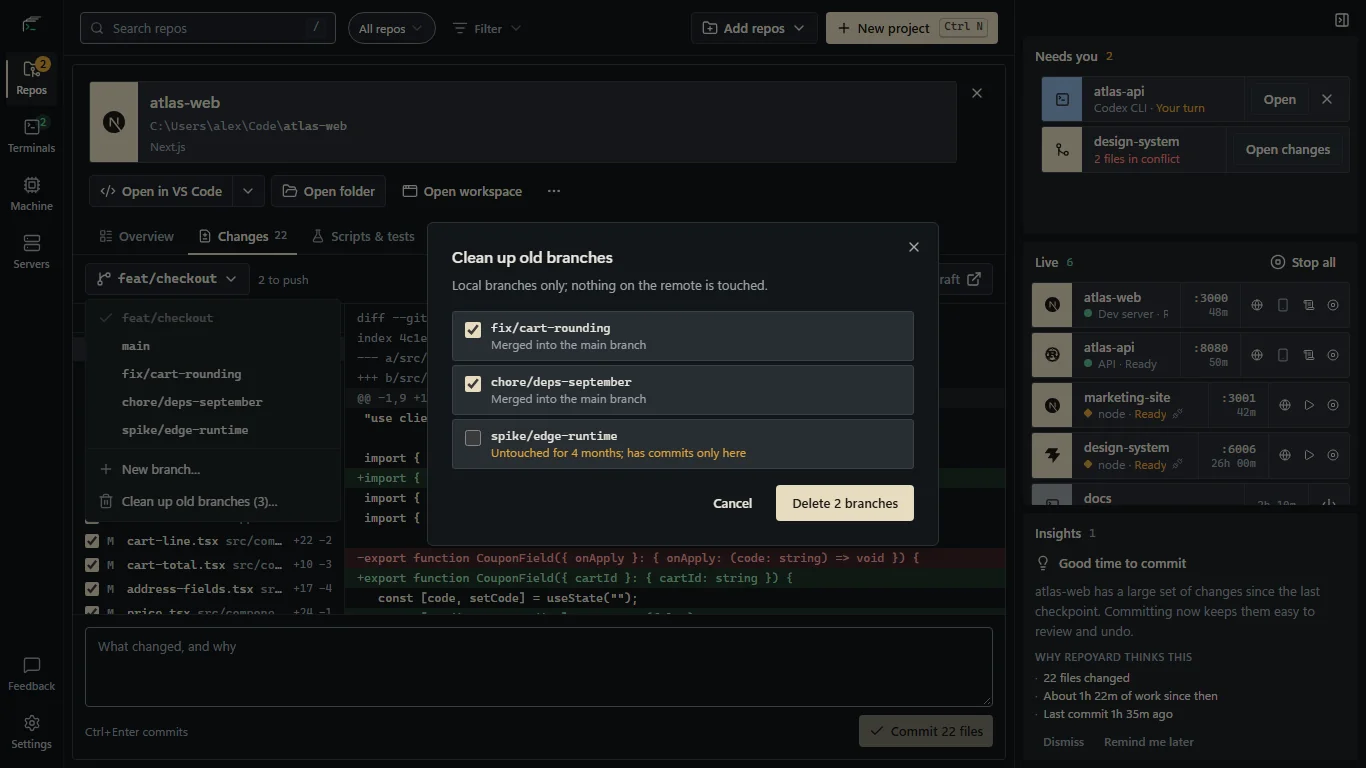
Open a repo's Changes tab, open the branch menu and choose Clean up old branches. Branches merged into the main branch are ticked. Branches whose remote branch was deleted, or that nobody has touched for three months, are listed but left unticked, because they may hold commits found nowhere else. Your current branch and the main branch are never listed.
Before deleting a ticked merged branch, RepoYard checks again that every commit on it is in the main branch, whichever branch you have checked out. git branch -d checks against the branch's own upstream, or the branch you are on, not against main, so this avoids deleting work that was merged somewhere other than main. A branch you tick yourself is deleted for good, and the dialog says so.
Only local branches change; nothing on the remote is touched. The main branch is the one origin/HEAD points to, or a local main or master.
Further reading
Try the workflow in RepoYard.
Windows 10 and 11, x64. Every feature for 7 days, then US$39.99 once. No RepoYard account needed.